OneDrive Problems Simplified: Tips and Tricks to Get Back on Track
Software Troubleshooting

Microsoft OneDrive is an important tool for storing and sharing files on different devices in the modern virtual office. For users it is the default choice for cloud storage because it works well with Windows and Microsoft 365.. What happens when OneDrive does not work as expected? You may have trouble uploading files. They may not sync properly or you might get strange error messages. These problems can disrupt your work especially if you work from home or with others.
Luckily there are some ways to fix most OneDrive problems. You will learn how to fix issues from this guide.
1. Syncing Problems: When Files Don’t Update
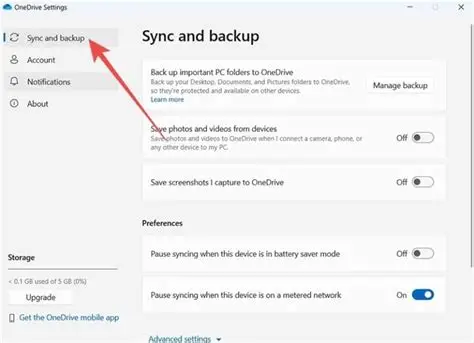
One of the common OneDrive problems is when files do not sync. Try these steps if your files are not syncing properly between devices:
Check your internet connection. A weak or lost connection can stop syncing.
Restart Microsoft OneDrive. Open Microsoft OneDrive again from the Start menu after closing it from the taskbar.
Make sure Microsoft OneDrive is up to date. New Windows updates might not work with a version. Go to the website. Install the latest version.
Check the names of your files. Microsoft OneDrive does not support characters like * ? < >. Renaming your files can fix sync issues.
Check your storage limits. Microsoft OneDrive cannot sync files if your device or account is out of space.
2. Microsoft OneDrive Not. Crashing
If Microsoft OneDrive will not start:
Open Microsoft OneDrive manually. Look for Microsoft OneDrive in the Start menu. Open it.
Fix the settings. To reset or repair Microsoft OneDrive go to Settings > Apps > Apps and Features find the app and choose ” options”.
Check for Windows updates. Problems with device software can stop Microsoft OneDrive from working
3. Login and Account Issues
Sometimes Microsoft OneDrive will not let you log in or will keep asking for your login information.
Check the status of your Microsoft account. Make sure your account has not been locked due to activity.
Delete saved credentials. Use the Windows Credential Manager to remove saved Microsoft account entries then try logging in
Re-link your account to the website. Go to Microsoft OneDrive settings disconnect your computer and then reconnect your account.
4. Files Not Showing Up or Disappearing
If your Microsoft OneDrive folder is not showing your files:
Use the web version. Check Microsoft OneDrive online to see if your files are still there.
Turn on files on demand. This feature saves space by downloading files when you need them but it can be confusing if you do not understand it. Check “Files On-Demand” by right-clicking the Microsoft OneDrive icon and choosing Settings > Sync.
Check the recycle bin. Files that you deleted by mistake can still be recovered from the Microsoft OneDrive Recycle Bin.
5. Microsoft OneDrive Error Codes
Microsoft OneDrive sometimes shows error messages like 0x8004de40 or 0x80070194. A quick internet search, for the error code usually takes you to a Microsoft help page or message boards with solutions.
Stay in Sync with Smart Fixes
Microsoft OneDrive problems can be frustrating. They can be fixed with simple steps. Your cloud storage will work well if you know how to fix syncing problems, login issues and file visibility.
Do not worry the time Microsoft OneDrive has a problem. Just try to fix it. Taking care of your life and keeping it connected requires a little bit of cloud maintenance.