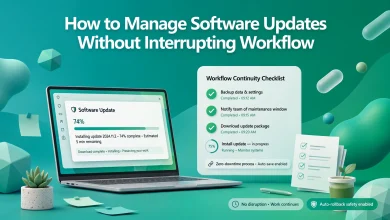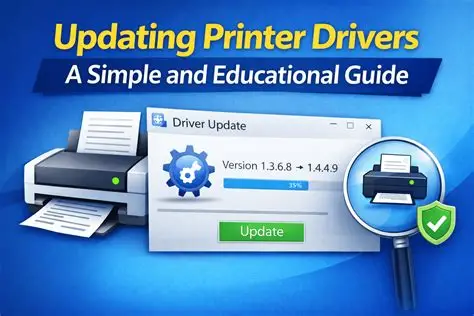
Your printer has software inside it that tells it what to do. This software is called printer firmware. Your printer needs updates to work and fix problems just like your phone or computer. Many people do not update their printer firmware. This can cause a lot of problems like printing errors and poor performance.
1. Check Your Printer Model
You need to know your printer model before you update the printer firmware. Each printer has its firmware updates. If you use the one it can cause problems.
To do this you can:
* Look at the label on your printer.
* Check the manual that came with your printer or the settings menu.
* Write down the model number and the brand of your printer.
2. Connect Your Printer to the Internet or Computer
new printers can get firmware updates through Wi-Fi or a connected computer. You need a connection so the update does not get interrupted.
Here are some tips:
* Use a Wi-Fi connection to update your printer firmware.
* You can also connect your printer to a computer with a USB cable.
* Do not turn off your printer while it is updating.
3. Visit the Official Manufacturer Website
You should always get firmware updates from the printer brand website. This way you can be sure you get software.
To do this:
* Go to the support section of your printer brand website.
* Search for your printer model number.
* Look for the firmware update file.
4. Download the Firmware Update
Once you find the update you can download it to your computer. If you are updating directly through your printer follow the on-screen instructions.
Here are some tips:
* Make sure you get the version of the firmware update.
* Do not interrupt the download process.
* Save the file in a place where you can easily find it.
5. Start the Firmware Installation
Now you can start installing the update. Many printers have a built-in update tool that guides you through it step by step.
Here is what you can expect:
* Your printer may restart during installation.
* You may see progress bars or status messages.
* Do not turn off your printer while it is updating.
6. Confirm the Update Is Complete
After installation your printer will usually show a confirmation message. Print a status report with the firmware version.
To do this:
* Check your printer settings for the firmware version.
* Print a test page to make sure it works properly.
7. Set Automatic Updates (If Available)
Some new printers can update firmware automatically. This is a way to stay up to date.
The benefits of updates are:
* They save you time.
* They keep your printer secure.
* They reduce effort.
Updating your printer firmware is a task that improves performance fixes bugs and ensures compatibility with new devices. By finding your printer model downloading updates, from the sources and following installation instructions carefully you can keep your printer running smoothly. Regular updates help extend the life of your printer and reduce issues in the run.
Your printer firmware is important so you should update it regularly to keep your printer working.
Thanks