Software Troubleshooting Techniques for Efficient Error Resolution
Software Troubleshooting

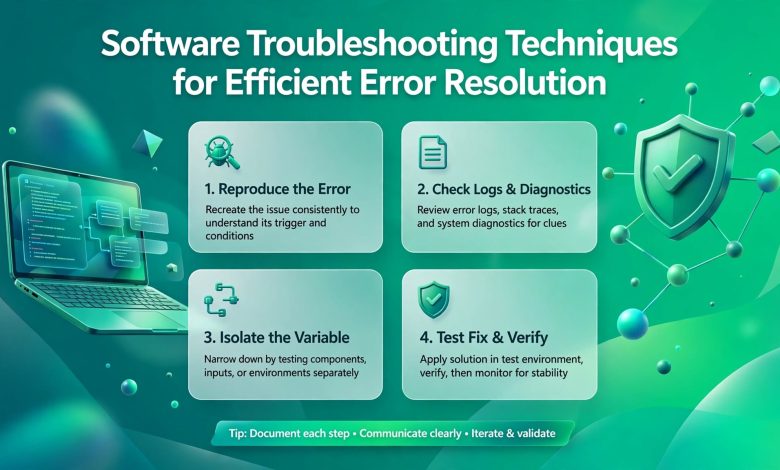
Software is an important part of everyday life, helping us with our business, education, communication, entertainment and general tasks. However, problems can occur with our software applications which can cause crashes, lagging, errors, incompatibility issues and issues during installation. Being able to effectively troubleshoot software will help users identify issues and get the correct solution.Troubleshooting software is a process of identifying issues and looking into potential causes. By using some effective troubleshooting techniques, you can easily identify errors on your computer application, mobile application or business software. Below are 9 tips to help solve common issues.
Find The Root Issue
Identifying what is causing the issue will be the first step to troubleshooting your software. Try to identify when the error is occurring and what is causing it. Is it when you start the application? When trying to open a certain feature? Identifying the root issue will stop you from making unnecessary changes.
Restart The Software/Device
One of the simplest ways to troubleshoot is to restart your application/device. Sometimes there can be temporary errors with your system, background processes or memory issues so closing the application will help. If this doesn’t work, try restarting your computer/mobile device.
Update Software
Old software can cause lots of issues such as bugs, vulnerabilities and incompatibilities. Developers often release updates to improve the performance of their software and fix issues. Check if there is a new version available and update your software from official sources. Keeping your applications and operating system updated will help avoid many issues.
Read Error Messages
Error messages will give you useful information. For example, you may receive an error telling you that a file is missing, there has been a permission error, or network error or operation is not supported. Take note of any error codes or technical information. Search for the exact error message in official documentation to see if you can find some reliable guidance.

Check System Requirements
Some applications will require certain operating systems, hardware specifications, memory and storage. If your device does not meet the requirements, the software may not function properly. Check the compatibility of the software and ensure that nothing else is getting in the way of the application.
Clear Cache And Temporary Files
Applications use cache files and temporary files to help run smoothly. However, sometimes there can be too much cache or corruption causing issues. Clearing the cache of your application may help with loading errors, display issues and unexpected behaviour. Make sure you know the difference between temporary files and important application data.
Check Permissions
Sometimes software will not work due to not having the necessary permissions to access files, folders, networks and features. Check the application permissions and ensure your security settings aren’t stopping something from working. Don’t disable your antivirus or any important security features unless you have a valid reason. Only use trusted software.
Re-install The Application
If none of the above troubleshooting techniques are working try re-installing the application. Before doing so make sure to save any important documents, settings and application data. Download the latest version from the official website/application store. Follow the instructions carefully.
Keep Notes And Contact Technical Support
Keeping notes on any issues you have had whilst troubleshooting software will help you in the future. If you are still having issues contact technical support from the software provider or a qualified professional. Include any relevant error messages, device information and what you have tried. Keeping notes will help technical support identify issues quicker.
Conclusion
Troubleshooting software requires patience. By identifying the root issues, restarting your device, checking for updates, reading errors and checking for compatibility you can solve many common issues. Clearing cache, checking permissions and re-installing applications can also help make your software more reliable. If your issues are becoming complex you can contact technical support from professionals.

Building good troubleshooting habits will help reduce downtime, increase productivity and make your digital experience smoother.
Thanks