Software Troubleshooting Steps for Unexpected Software Failures
Software Troubleshooting

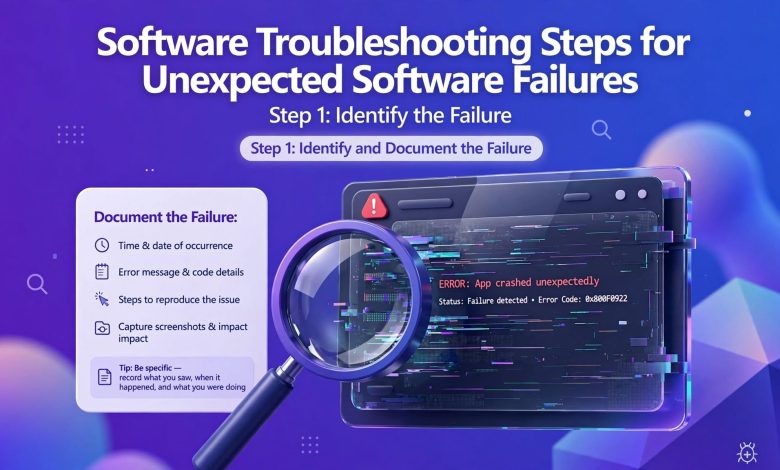
Software problems may occur suddenly and interfere with everyday activities. Software freezes, closes or produces an error message that does not allow the user to continue working or studying. There is nothing to worry about since almost all problems can be solved. Following a few simple steps one can eliminate software issues, identify their cause, and prevent them from occurring in the future
Restart the Software
The first solution that can solve most problems is to close the program and reopen it. If the software stopped working, the reason for the malfunction can be found during the restart. If the program froze, it can be forcefully closed by visiting Task Manager and reopened.
Restart the Computer
The second solution is to restart the computer. After restarting, make sure that the program is opened correctly and there are no error messages. Sometimes, just a simple reboot can fix software issues.
Take Note of the Error Message
For the third step, take a photo or note of any error message. If an error message appears, do not panic as most of the errors can be resolved by searching for the code. If the error message is unclear or non-translatable, visit the official website and search for the error code.
Update the Software
Fourth, update the software. It is possible that the program has a few bugs that need to be fixed. To update the program, go to its official website or application store and make sure the latest version is installed.
Update the Computer
Updating the computer is the fifth step. Sometimes, errors can be triggered by the operating system; thus, updating Windows is necessary to update the drivers and system files.
There is Insufficient Space on the Device
Additionally, ensure that there is enough space on the computer. Running out of storage can result in system malfunction and interfere with the smooth working of applications and software.
There are Incompatible Programs Interfering with the Software
Another solution is to eliminate other programs that may interfere with the application. Close all unnecessary applications to launch the desired program. Some programs cannot coexist with others, especially security software, such as antivirus, or overlay applications, such as Steam.

Run the Program as Administrator
Eighth, if none of the previous methods worked, try running the program as an administrator. To do this, right-click the application and select the “run as administrator” option. If this method worked, visit the official website of the application and change the permission settings.
Repair or Reinstall the Application
If the application is still malfunctioning, the problem may be in the application itself. In this case, try reinstalling the application on the computer. It is advisable to repair the program if the option is available because repairing is less time consuming and does not delete the saved data. Otherwise, follow the steps below to reinstall the application.
Check the Compatibility of the Application
Another solution is to check the compatibility of the application. Older versions of programs may not be compatible with the new operating system. In this case, make sure that the application is compatible with the operating system. On Windows, compatibility settings can be adjusted in the application settings. In addition, make sure that the software meets the system requirements.
Restore the Computer to the Previous State
If the application was working correctly before and stopped malfunctioning after updating or changing specific settings, try reinstalling the application or restoring the computer to a previous state when the software was working correctly.
Contact the Developer for Help
The last step is to contact the developer for assistance. If the previously mentioned steps did not help, contact the developer through the official website, email, or phone number. Clarify the version of the application, operating system, error message, and steps that led to the malfunction.
Conclusion
Software problems may occur randomly and disturb the working process. To deal with this situation, it is necessary to remain calm and try to identify the source of the error. Following a few simple steps, one can easily solve the issue. The primary methods to solve software problems are restarting the program, updating the application, checking the error message, reinstalling the application, and contacting the developer for help.

Following these tips, one can eliminate most of the software problems that occur unexpectedly.
Thanks